Go Back
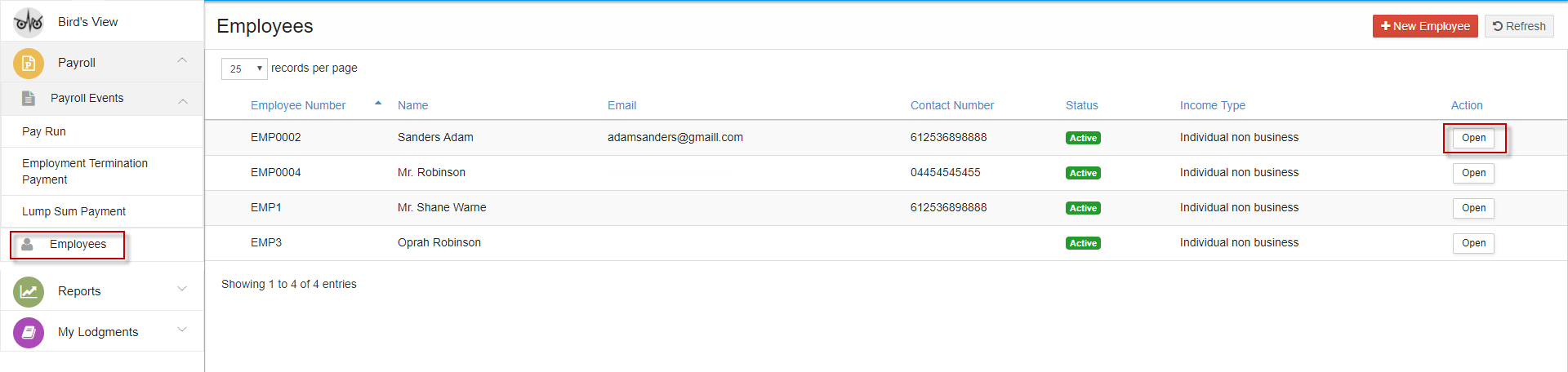
1. In the Payroll menu, select Employees.
2.You can see the list of employees already added.
3.In the employee entry, Under Actions, click on "Open".
4.Select the Pay Template tab.
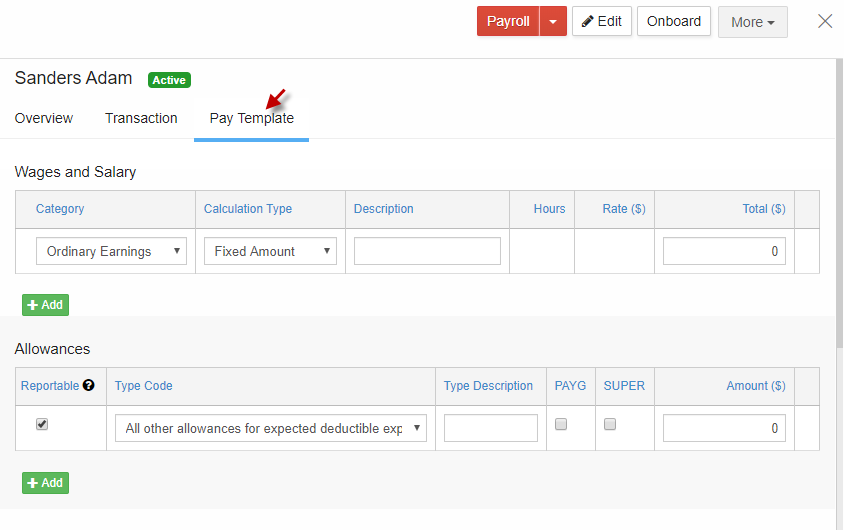
5.You can create a Pay template by setting ordinary hours, overtime hours, common allowances used by the employee, deductions, if any and suitable superannuation.
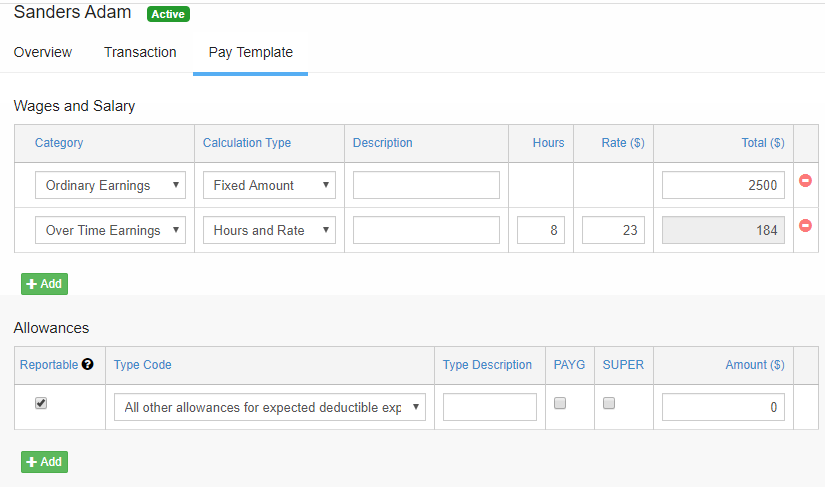
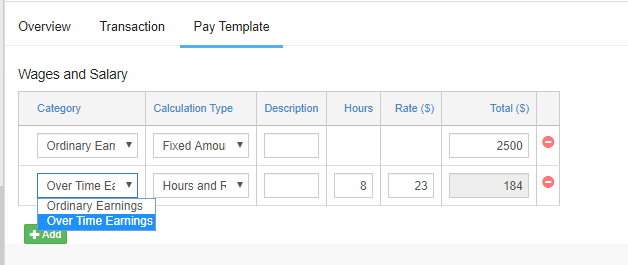
6.Select “Add” button to add multiple, ordinary or overtime hours. The default calculation type is “Fixed Amount”. The calculation type can be changed as “Hours and Rate” whenever needed. Please note that the overtime hours pay is always exempt from Superannuation.
7.You can also choose from Allowances list and enter the amount.
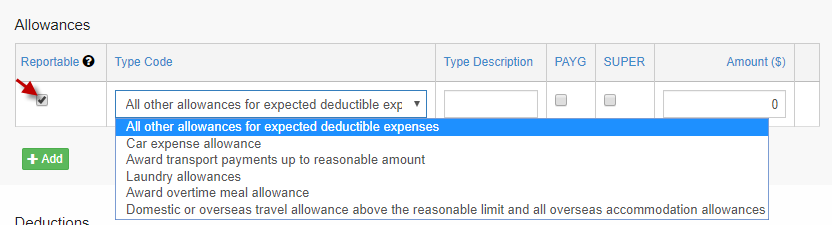
Please note that Allowance amount you add will be added to Total gross amount entered in the payslip by default. Hence, the checkbox under "Reportable" is ticked by default. If you don’t want the allowance amount to get added to Total Gross, you can untick the checkbox under ‘Reportable’.
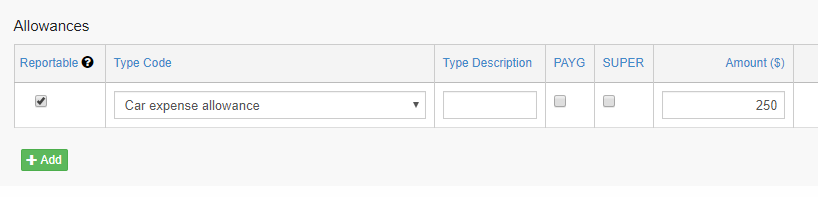
8.Similarly you can set any deductions, if required.
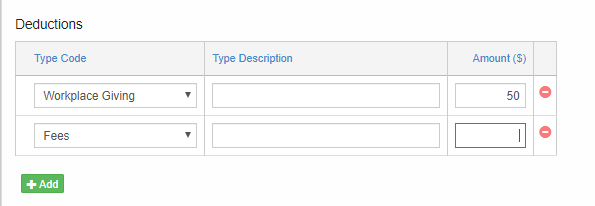
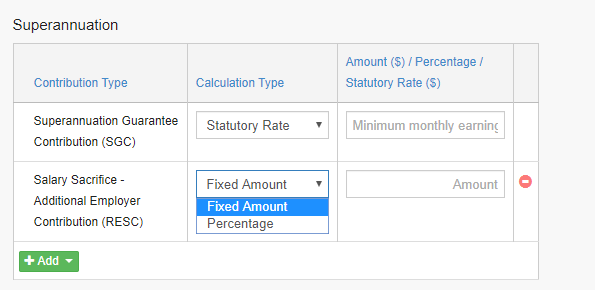
9.There is Superannuation Guarantee Contribution which can be set based on 3 different calculation types. It could be a fixed amount or a percentage of earnings which could be customized or a statutory rate of 9.5%. You can choose any 1 calculation type and that will be applied to the pay slips.
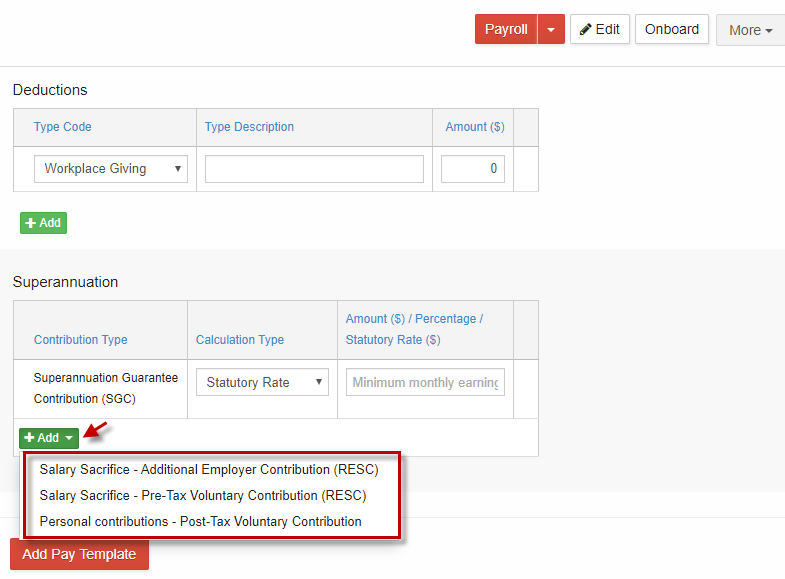
10.If your employee has additional Super fields, you can enter Salary sacrifice fields as Additional super contribution or Pre-tax voluntary contributions. You can enter in any one of the above fields. Please note that Pre-tax voluntary contribution reduces the taxable income of your employee.
11.Select the calculation type of the RESC field. It could be either a fixed amount or a percentage of their earnings.
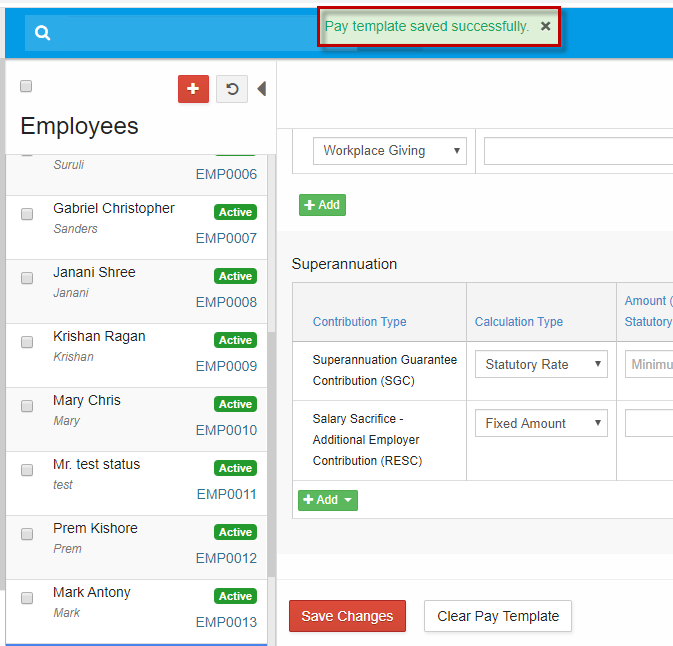
12.There is also another category under Super called Post-tax voluntary contribution. You can add any required "super" fields for your employees and save the template.
13.Hence while creating payslip for the employee, the fields saved in this template appears by default thus making the data entry in payslips less time consuming and easier.
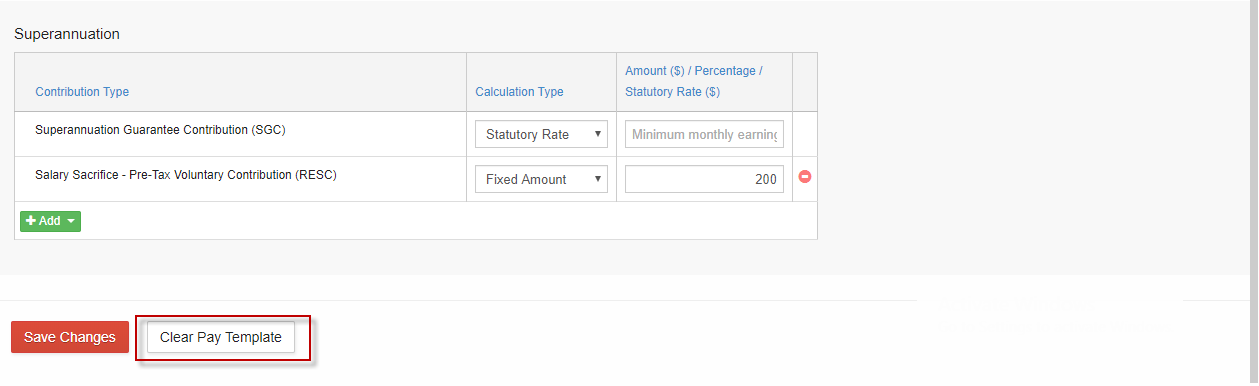
14. If you want to remove the template already created, you can click on Clear Pay Template".
Pay Template
1. In the Payroll menu, select Employees.
2.You can see the list of employees already added.
3.In the employee entry, Under Actions, click on "Open".
4.Select the Pay Template tab.
5.You can create a Pay template by setting ordinary hours, overtime hours, common allowances used by the employee, deductions, if any and suitable superannuation.
6.Select “Add” button to add multiple, ordinary or overtime hours. The default calculation type is “Fixed Amount”. The calculation type can be changed as “Hours and Rate” whenever needed. Please note that the overtime hours pay is always exempt from Superannuation.
7.You can also choose from Allowances list and enter the amount.
Please note that Allowance amount you add will be added to Total gross amount entered in the payslip by default. Hence, the checkbox under "Reportable" is ticked by default. If you don’t want the allowance amount to get added to Total Gross, you can untick the checkbox under ‘Reportable’.
8.Similarly you can set any deductions, if required.
9.There is Superannuation Guarantee Contribution which can be set based on 3 different calculation types. It could be a fixed amount or a percentage of earnings which could be customized or a statutory rate of 9.5%. You can choose any 1 calculation type and that will be applied to the pay slips.
10.If your employee has additional Super fields, you can enter Salary sacrifice fields as Additional super contribution or Pre-tax voluntary contributions. You can enter in any one of the above fields. Please note that Pre-tax voluntary contribution reduces the taxable income of your employee.
11.Select the calculation type of the RESC field. It could be either a fixed amount or a percentage of their earnings.
12.There is also another category under Super called Post-tax voluntary contribution. You can add any required "super" fields for your employees and save the template.
13.Hence while creating payslip for the employee, the fields saved in this template appears by default thus making the data entry in payslips less time consuming and easier.
14. If you want to remove the template already created, you can click on Clear Pay Template".